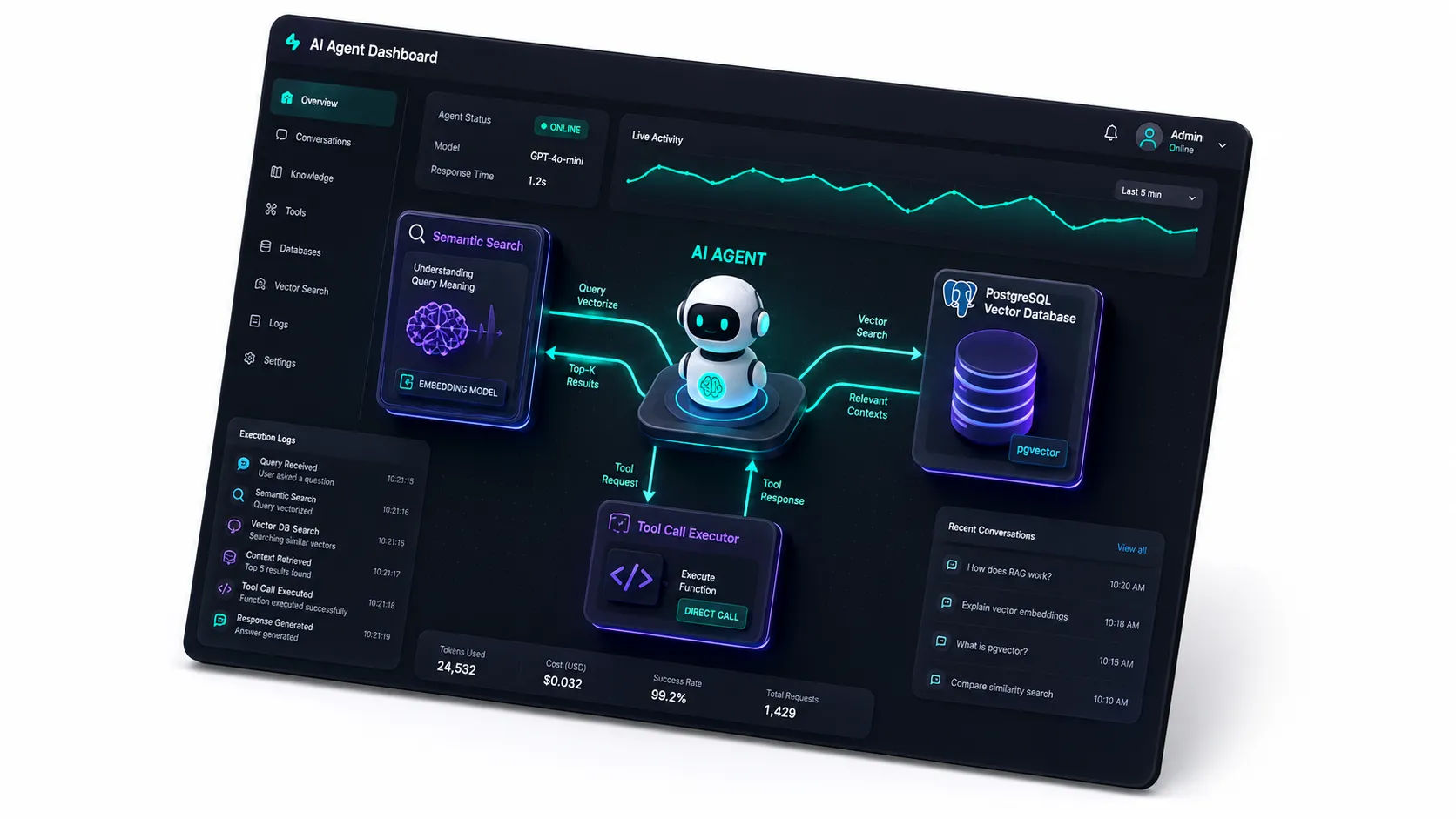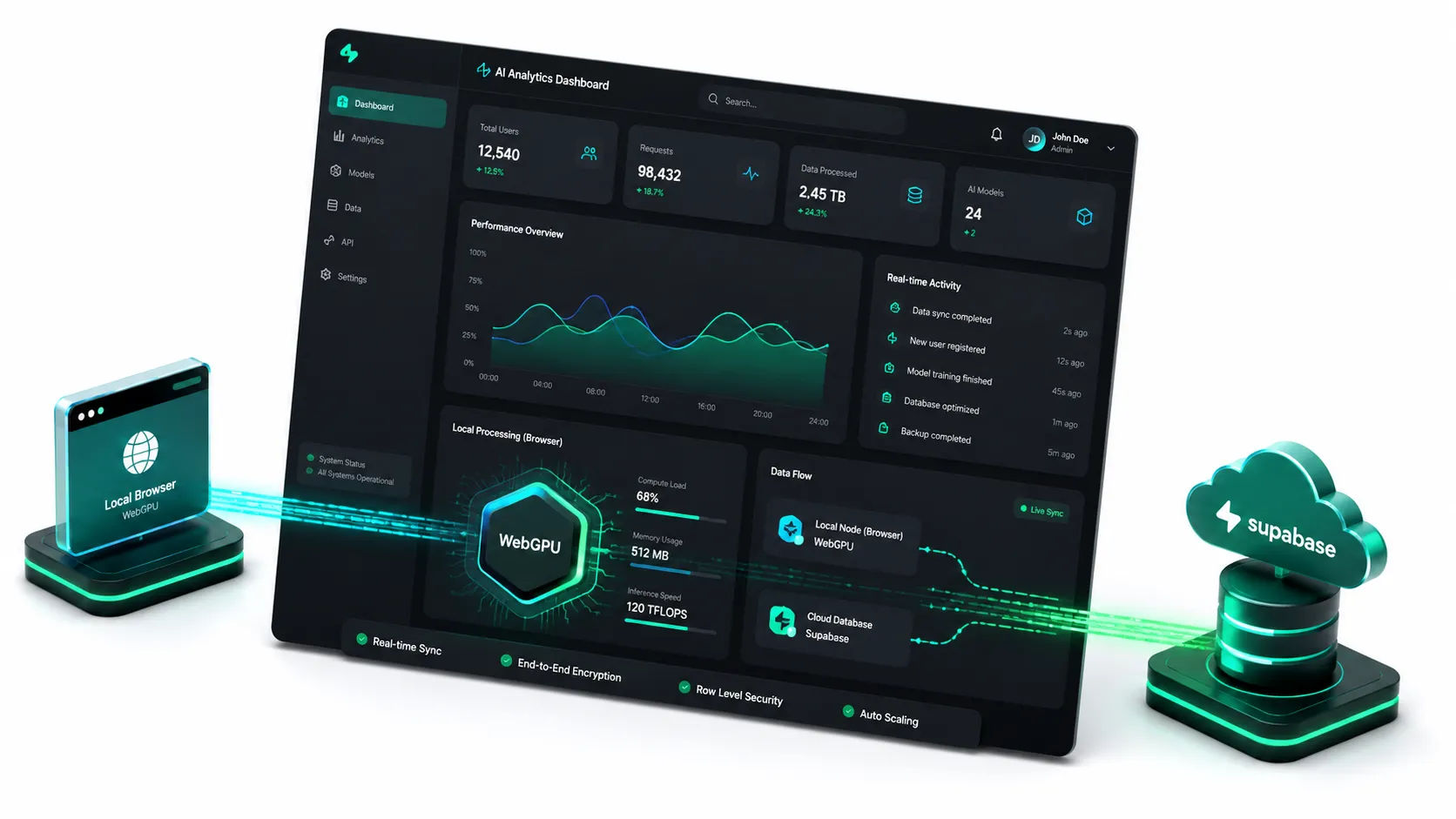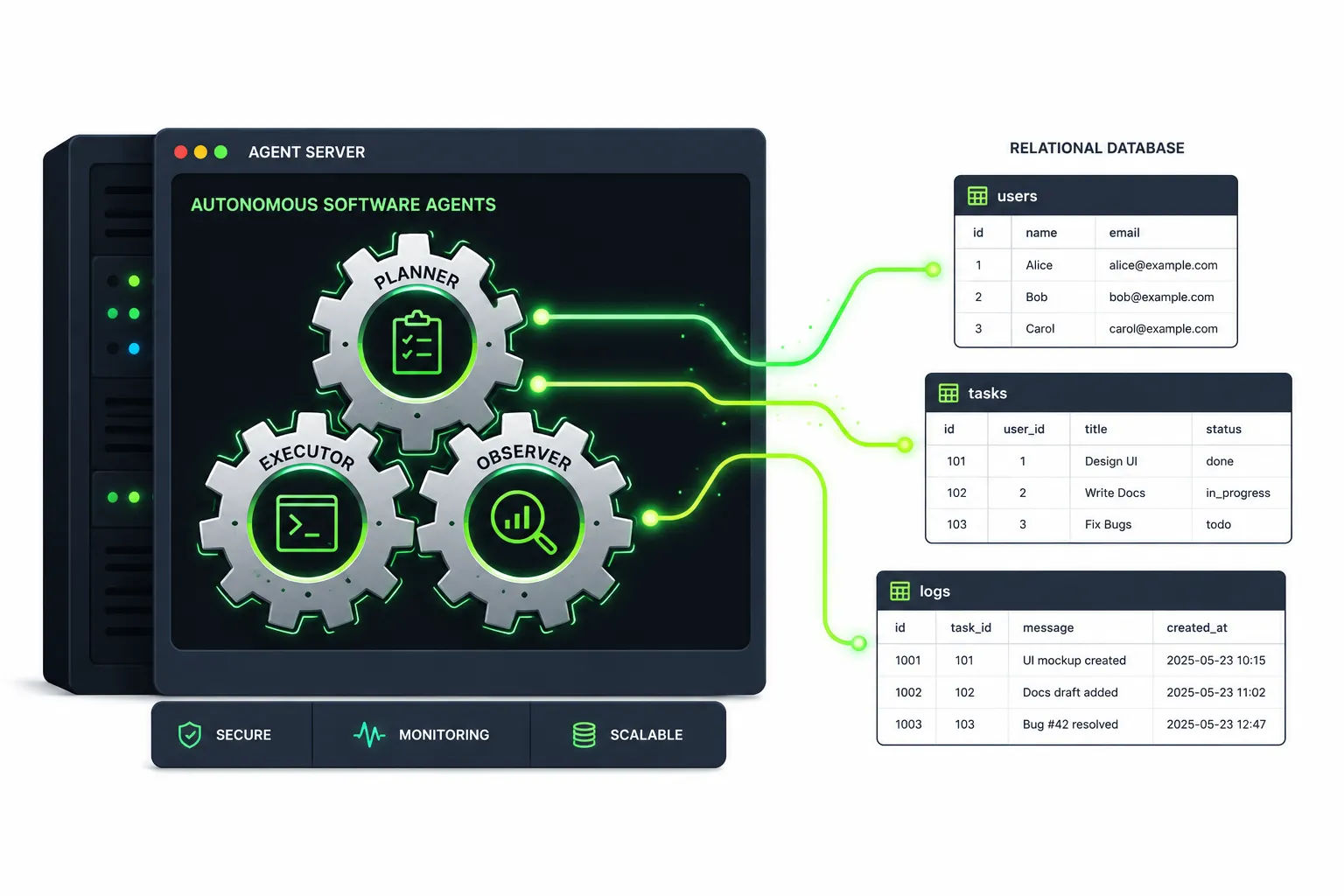
AI-Powered Admin Dashboards: 1-Click Prompts for Contact Message Next js Tailwind css wisemixmedia
Mastering the Admin Dashboard: One-Click Prompts for your "Contact Messages" Page
Footer ui ux modern using next js tailwind css
latest article page and sidebar ui ux next js and tailwind css
In modern web development, AI-driven coding is the new standard. Whether you are using Cursor, GitHub Copilot, or ChatGPT, the secret to high-quality code lies in the precision of your prompts.
Today, I’m sharing a set of production-ready prompts designed to help you build a complete Admin Contact Messages module in Next.js. These prompts cover everything from responsive UI and UX to complex functional logic and API integration.
How to Use These Prompts
Simply copy each paragraph below and paste it into your IDE's AI chat (e.g., Command+L in Cursor). For the best results, use them in the order provided.
Phase 1: The UI/UX Blueprint
Goal: Establish the layout, responsiveness, and visual hierarchy.
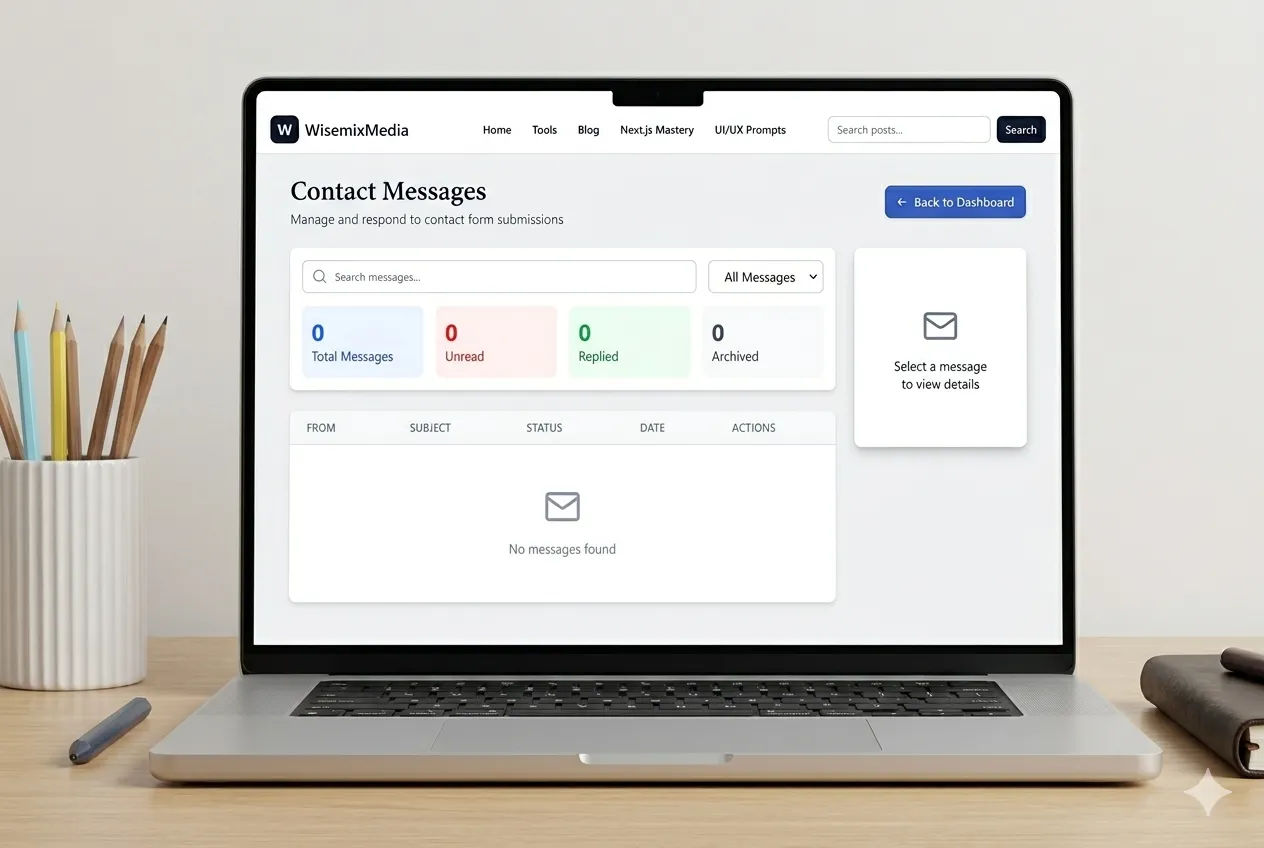
"Create a responsive admin “Contact Messages” page with a clean, modern dashboard look: a light gray page background, a centered container, a bold title and subtitle at the top, and a “Back to Dashboard” button on the right. Below, build a two‑column layout on large screens (stacked on mobile): the left side is a message list with filters and a table; the right side is a sticky message detail card. Use rounded white cards with subtle shadows. The filter area includes a search input with a leading icon, a status dropdown, and a stats grid showing total, unread, replied, archived counts. The table has columns for sender, subject, status, date, and actions, with hover states and a selected row highlight. The detail panel shows sender info, subject, message body, date, and action buttons."
Phase 2: Core Functionality & Logic
Goal: Handle data fetching, pagination, and state management.
"Implement message fetching with pagination and status filtering: on load and when status/page changes, call an API endpoint, store messages and pagination in state, and show a loading row while fetching. Allow selecting a row to display the full message in a detail panel. Provide actions to mark unread as read, mark replied, archive, or delete; these should call update/delete endpoints and refresh the list. Clicking row action buttons should not trigger row selection. Add pagination controls with previous/next buttons and a limited page number list. Display empty and loading states. The right panel should show a “Select a message” placeholder until a message is chosen."
Phase 3: Visual Polish & Feedback
Goal: Add icons, status colors, and refined styling details.
"Use icons for search, mail, user avatar, calendar, and actions. Status should be shown as a colored pill: unread (red), read (yellow), replied (green), archived (gray). The message sender cell should include a circular avatar icon, name, and email. The message body should be in a soft gray panel with pre-wrap formatting. Buttons should have hover states, and destructive actions should be red. The detail panel should remain visible while scrolling using sticky top-24."
Phase 4: Architecture & Next.js Best Practices
Goal: Ensure the code is clean, modular, and optimized for Next.js.
"Build this as a client component in Next.js using React hooks for state and effects. Maintain messages, pagination, loading, selectedMessage, and filters (status, search, page, limit). Use useEffect to fetch data when filters change. Add helpers for formatDate and getStatusColor. Use fetch for API calls to /api/contact and /api/contact/[id]. Keep the JSX structured into header, filters + stats, table, and detail panel sections, and ensure the layout is mobile‑friendly with a single‑column stack."