The Ultimate Guide to Professional PDF Generation and 600 DPI Conversion
The Ultimate Guide to Professional PDF Generation and 600 DPI Conversion
Generating digital documents is a core feature of modern web applications. Whether you are building an invoice generator, a dynamic billing system, or an automated AI CV Builder, users expect to download clean, well-formatted PDFs at the click of a button.
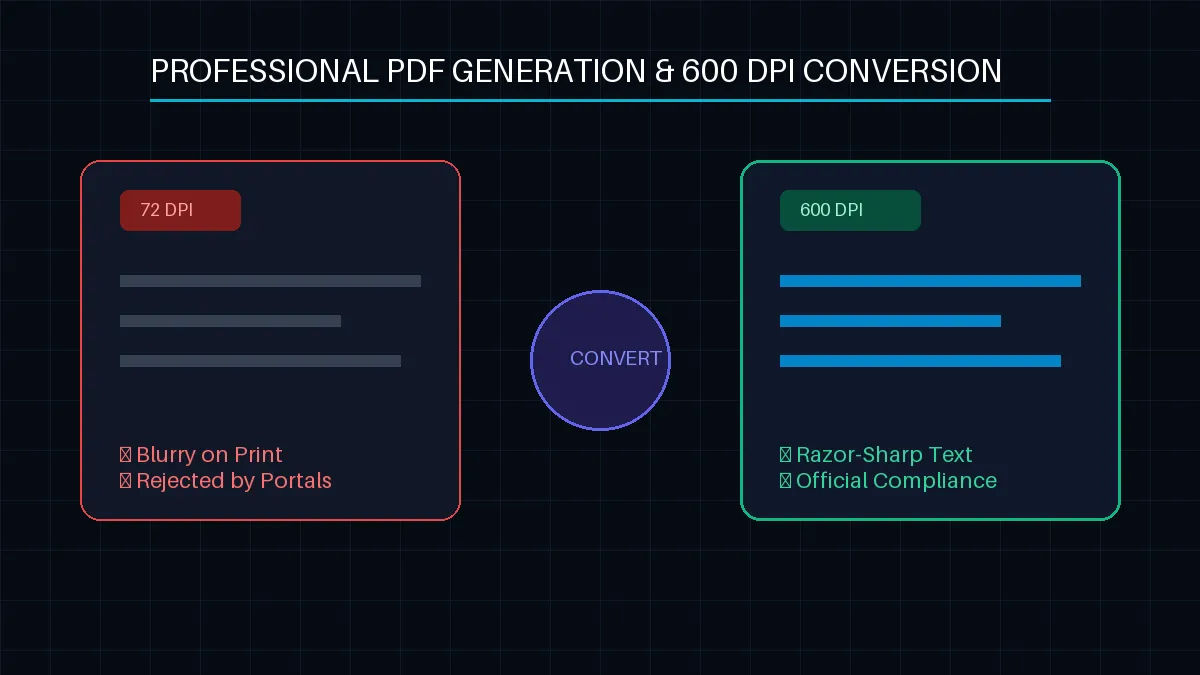
However, standard client-side PDF generation often falls short. Traditional setups render documents at screen resolution (usually 72 DPI or 96 DPI). While this looks fine on a standard monitor, it causes major issues when the document is printed or uploaded to official government verification portals, resulting in blurry text and pixelated layouts.
To achieve print-ready status, documents must hit a crisp 600 DPI (Dots Per Inch) standard. In this guide, we will look at how to master professional full-stack PDF generation and implement high-resolution conversion pipelines inside a modern web stack.
Client-Side vs. Server-Side PDF Generation
Before writing any code, you need to choose where your document generation logic lives:
Client-Side Generation (
html2pdf.js,jsPDF): Fast and requires zero server resources. The user's browser handles the heavy rendering. This is ideal for basic dashboards or instant receipt downloads.Server-Side Generation (
Puppeteer,Chromium): The absolute gold standard for corporate applications. A headless browser boots up on the server, reads a clean HTML layout, and outputs a pixel-perfect, secure PDF. This prevents client-side rendering discrepancies across different devices and operating systems.
Step 1: Client-Side Implementation with High-Resolution Scaling
If you are using a client-side architecture to save on server infrastructure bills, you can override the default screen resolution by manipulating the HTML5 Canvas backing store scale factor before capturing the DOM elements.
Here is how to structure a React/Next.js utility function to enforce sharp, high-density outputs:
TypeScript
import html2canvas from 'html2canvas';
import jsPDF from 'jspdf';

export const generateHighResPdf = async (elementId: string, filename: string) => {
  const element = document.getElementById(elementId);
  if (!element) return;

  try {
    // 1. Optimize options to increase pixel density for 600 DPI target simulation
    const canvas = await html2canvas(element, {
      scale: 4, // Multiplies the internal rendering resolution
      useCORS: true, // Ensures cross-origin images don't block canvas compilation
      logging: false,
      backgroundColor: '#ffffff'
    });

    const imgData = canvas.toDataURL('image/jpeg', 1.0); // Maximum quality matrix

    // 2. Define standard A4 document layout dimensions
    const pdf = new jsPDF({
      orientation: 'portrait',
      unit: 'mm',
      format: 'a4'
    });

    const imgWidth = 210; // A4 width in mm
    const pageHeight = 295; // A4 height in mm
    const imgHeight = (canvas.height * imgWidth) / canvas.width;
    let heightLeft = imgHeight;
    let position = 0;

    // 3. Multi-page slicing framework logic
    pdf.addImage(imgData, 'JPEG', 0, position, imgWidth, imgHeight, undefined, 'FAST');
    heightLeft -= pageHeight;

    while (heightLeft >= 0) {
      position = heightLeft - imgHeight;
      pdf.addPage();
      pdf.addImage(imgData, 'JPEG', 0, position, imgWidth, imgHeight, undefined, 'FAST');
      heightLeft -= pageHeight;
    }

    pdf.save(`${filename}.pdf`);
  } catch (error) {
    console.error('High-Res PDF Generation Pipeline Failed:', error);
  }
};
Step 2: Server-Side 600 DPI Rendering via Headless Puppeteer
For professional enterprise architectures, generating a true biometric or vector-based high-resolution document requires control over device scale metrics during layout instantiation.
Below is a backend-driven execution function designed for Next.js Server Actions or API routes:
TypeScript
import puppeteer from 'puppeteer-core';

export async function renderPrintReadyPdf(htmlContent: string) {
  let browser;
  try {
    // Launch headless instance mimicking an ultra-high-definition output stream
    browser = await puppeteer.launch({
      args: ['--no-sandbox', '--disable-setuid-sandbox'],
      headless: true
    });

    const page = await browser.newPage();

    // Set viewport dimensions to emulate massive high-density print space
    await page.setViewport({
      width: 2480, // Equivalent to A4 width at 300-600 intermediate print scaling
      height: 3508,
      deviceScaleFactor: 2 // Forces asset sub-pixel vector stabilization
    });

    await page.setContent(htmlContent, { waitUntil: 'networkidle0' });

    const pdfBuffer = await page.pdf({
      format: 'A4',
      printBackground: true,
      preferCSSPageSize: true,
      margin: {
        top: '10mm',
        right: '10mm',
        bottom: '10mm',
        left: '10mm'
      }
    });

    await browser.close();
    return pdfBuffer;

  } catch (error) {
    if (browser) await browser.close();
    throw error;
  }
}
Key Requirements for Official Document Compliance
When developing templates intended for verification networks, keep these layout parameters strict:
Vector Fonts Only: Never embed bitmap or rasterized font profiles. Stick to system-safe layouts or preload standard WebFonts explicitly via clean absolute URLs.
Explicit Text Alignment: Prevent browser engine text tracking drift by ensuring your print styles include custom standard line heights and block text bounds.
No CSS Transform Overlays: Headless print pipelines frequently struggle with overlapping elements or complex skew transformations. Keep your document layouts clean and reliant on classic flexbox structures.
Conclusion
Upgrading your document delivery system to support high-density 600 DPI scales eliminates rejection issues on registration platforms and ensures your applications maintain a high standard of professional quality. By combining smart client-side canvas scaling or using dedicated server-side headless browsers, you can deliver razor-sharp files to your clients every single time.