How to Start Your First Next.js Project: From Installation to Hello World
How to Start Your First Next.js 15 Project: A Comprehensive Beginner’s Guide (2026 Edition)
Welcome to the world of modern web development! If you’ve ever wondered how high-performance websites like Wisemix Media are built, the answer often lies in Next.js.
Next.js has become the industry standard for React frameworks, offering unmatched speed, SEO capabilities, and developer experience. Whether you are working on a farm in Saudi Arabia like me or sitting in a high-tech office in Dubai, coding is a skill that opens doors. In this guide, I will take you from "zero" to your first "Hello World" in Next.js 15.
Why Choose Next.js in 2026?
Before we jump into the terminal, let’s understand why Next.js 15 is the preferred choice for developers today:
Server-Side Rendering (SSR): Your pages load faster because the server does the heavy lifting.
Search Engine Optimization (SEO): Unlike standard React apps, Next.js makes it easy for Google to crawl your site (essential for getting those clicks in Search Console!).
Automatic Image Optimization: No more manual resizing; Next.js handles it for you.
App Router: A simplified way to organize your website’s pages and layouts.
Phase 1: Preparing Your Digital Workspace (Prerequisites)
Every great builder needs a clean workbench and the right tools. For Next.js development, you need two main things:
1. Node.js & NPM (The Engine)
Node.js is the environment that allows JavaScript to run on your computer, and NPM (Node Package Manager) is the tool used to install libraries.
Action: Go to nodejs.org and download the LTS (Long Term Support) version.
Verification: Open your terminal and type
node -v. If a version number appears, you’re good to go!
2. VS Code (The Canvas)
Visual Studio Code is where the magic happens. It’s free, fast, and has incredible extensions for Next.js and Tailwind CSS.
Pro Tip: Once installed, add the "ES7+ React/Redux/React-Native snippets" extension to speed up your coding.
Phase 2: Creating Your First Project
Now, let’s get our hands dirty. We will use the create-next-app command, which sets up everything automatically.
Open your Terminal: On Windows, use CMD or PowerShell. On Mac/Linux, use the Terminal.
Navigate to your folder: I usually keep my projects on the Desktop.
Bash
cd DesktopRun the Magic Command:
Bash
npx create-next-app@latest my-first-app
The Configuration Quiz
After you hit enter, the terminal will ask you a few questions. To follow this guide perfectly, choose these options:
TypeScript? No (We will start with JavaScript to keep it simple).
ESLint? Yes (This helps catch errors in your code).
Tailwind CSS? Yes (This is what we use for styling—it’s amazing!).
src/ directory? Yes (Keeps your project organized).
App Router? Yes (The modern way to build Next.js apps).
Import Alias? No (Just press Enter).
Phase 3: Understanding the Folder Structure
Once the installation finishes, open the folder in VS Code (File > Open Folder > my-first-app). You will see many files, but don’t feel overwhelmed. Here are the important ones:
src/app/: This is where your pages live.layout.js: This file controls the parts of your site that stay the same on every page (like the Header and Footer).

page.js: This is your homepage. Whatever you write here appears at the root URL.
globals.css: This is where your Tailwind CSS and custom styles are stored.
next.config.js: This is for advanced settings (like setting a basePath if you’re hosting in a subfolder).
Phase 4: Launching the Development Server
It’s time to see your creation live!
Inside VS Code, open the integrated terminal (
Ctrl + ~).Type the following command:
Bash
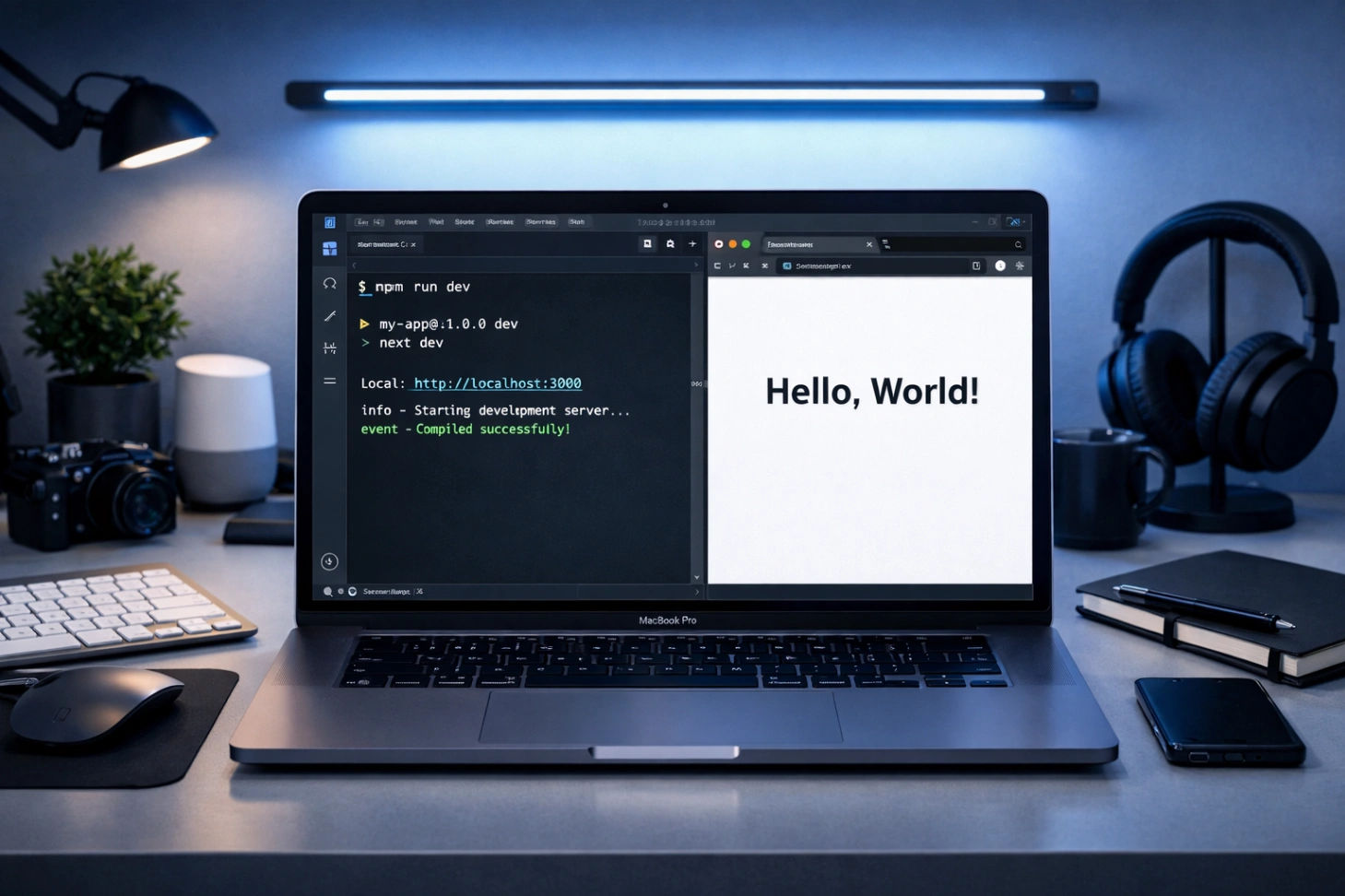
npm run devCheck the Output: You will see a message saying "Ready in ... ms". By default, your site will be running at:
http://localhost:3000
Open your browser and enter that address. If you see the Next.js welcome screen, congratulations! You are officially a Next.js developer.
Phase 5: Writing Your First "Hello World"
Let’s replace the default template with something personal.
Go to
src/app/page.js.Delete all the code inside the file.
Copy and paste this clean, professional code:
JavaScript
export default function Page() {
return (
<div className="min-h-screen flex flex-col items-center justify-center bg-gray-100 p-8">
<div className="bg-white p-10 rounded-2xl shadow-xl text-center">
<h1 className="text-5xl font-extrabold text-transparent bg-clip-text bg-gradient-to-r from-blue-600 to-purple-600 mb-4">
Hello World!
</h1>
<p className="text-gray-600 text-lg mb-6">
This is my first project on Wisemix Media's Next.js Mastery.
</p>
<button className="bg-blue-600 hover:bg-blue-700 text-white px-6 py-2 rounded-lg transition duration-300">
Explore More
</button>
</div>
</div>
);
}
Save the file (Ctrl + S). Look at your browser—it will update instantly without you even having to refresh the page! This is called "Fast Refresh," and it’s one of the best features of Next.js.
Phase 6: Practical Tips for Saudi & Global Developers
Working on projects locally is great, but your goal should be to go live.
Database Integration: Once you master the basics, you should look into Prisma. It allows you to connect your Next.js app to a database (like PostgreSQL or MySQL) easily. I use Prisma for my projects to manage data efficiently.
Deployment: When your site is ready, you can deploy it for free on Vercel. It syncs with your GitHub and puts your website online in minutes.
SEO is King: Always remember to update your
layout.jswith a proper title and description. This ensures that when someone searches for your site, it appears correctly in Google Search.
Phase 7: Scaling to Advanced Research Projects
In my journey, I’ve found that the best way to learn is by solving real-world problems. For example, my current goal is to build a system that automatically fetches the latest research papers from AI giants at NVIDIA, like Jim Fan and Yuke Zhu.
By using Next.js, I can create a dashboard that:
Connects to a research API.
Filters publications from May 2024 to the present.
Displays them in a clean, searchable interface.
This is the power of Next.js—it's not just for "Hello World"; it’s for building the future of the web.
Final Thoughts
Starting a coding journey can feel like climbing a mountain, but remember: every expert was once a beginner. You’ve now learned how to install Node.js, create a project, use Tailwind CSS, and launch a local server.
What’s Next? Stay tuned for my next post in the Next.js Mastery series, where we will dive deep into Prisma and Database Management.
Happy Coding from the farm in Saudi Arabia to the world!